“Automation is not about replacing humans, it’s about freeing them to do more intelligent and creative work.” – Unknown
I have been using ChatGPT as a high-hand virtual Notetaker assistant by OCR’ing screen captures, photos or PDFs of my handwritten notes for a while now. These could be paper notes or from an e-ink tablet (I have been using Supernote Manta for the past few months), but the advantage of AI is that it can use context to complete notes that are difficult to read (you know, bad writing). It can also identify future commitments (meetings and so on) as well as action items (tasks).
I recently started to toy with Claude Cowork as part of Claude desktop application on the mac. The combination of Chat, Cowork and Code in an application for which you can allow certain automated operations and access on your computer opens up interesting possibilities (and the fact that you can explicitly opt-out of sending data for Anthropic is a plus).
First, Claude has user-created “skills” that are used every time certain actions are performed. For one, this allows one to imprint specific requests to create a virtual Notetaker assistant from OCR files. However, you can do much more and have Claude automatically create files by giving authorization to perform certain actions or write a dedicated folder, for example. You can further ask the virtual note taker to extract tasks from your meeting notes.
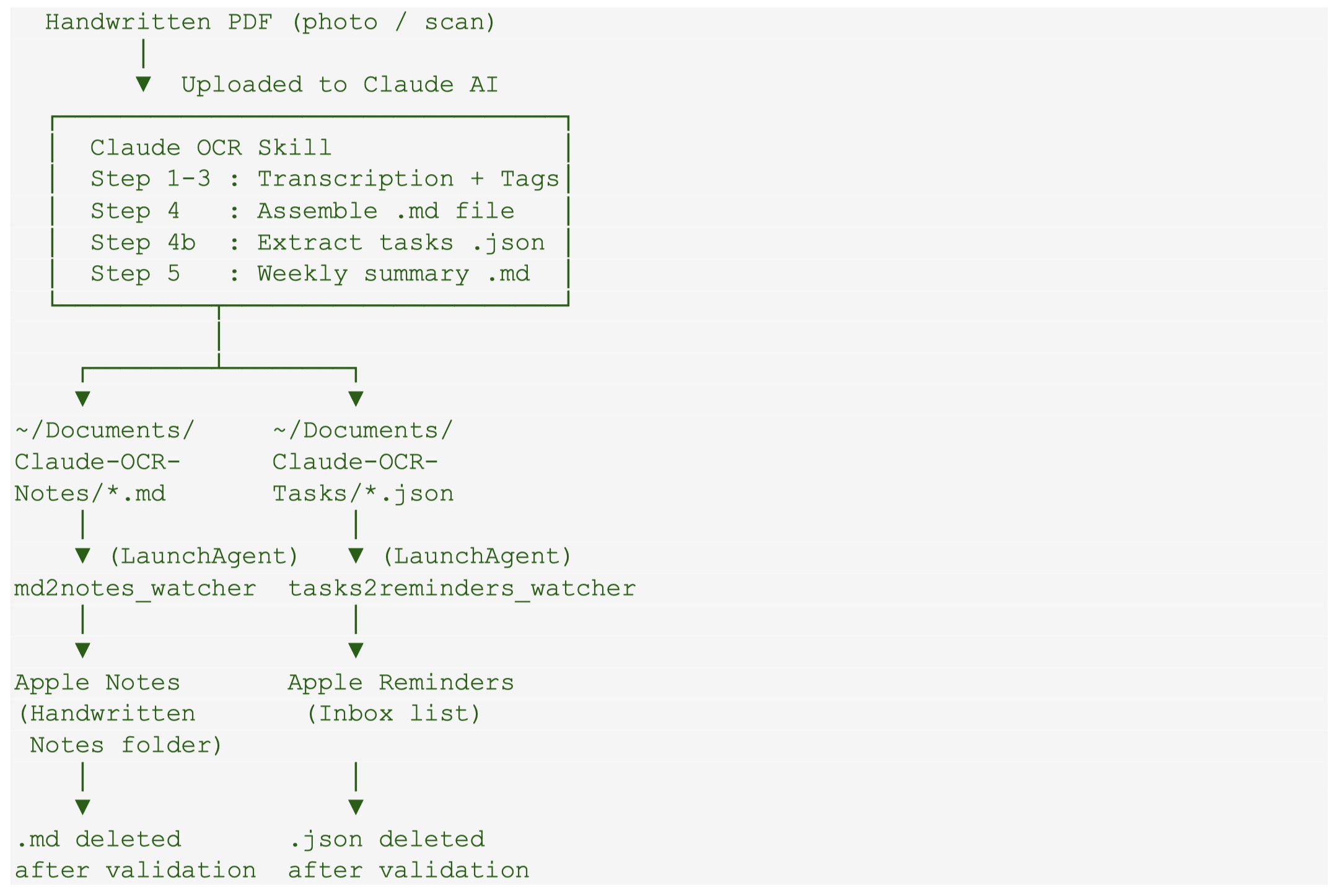
Based on the above, I ask Claude to create folder automation that automatically imports markdown meeting notes to Apple Notes as soon as Claude writes the file to a dedicated folder. The virtual Notetaker further generates a JSON file with extract tasks to another dedicated folder with another automation that captures and imports them in the Inbox list of Apple Reminders.
Figure. The workflow of the automation created to go from handwritten notes to transcribe notes in Markdown in import in Apple Notes as well as extract tasks to Apple Reminders Inbox list.
It took a few back and forth with Claude, but it generated all of the codes, the install shell script to run in the terminal, giving permission to access certain folders and perform certain actions, and finally, the packaging for a GitHub project, which can be found here.
It is freely available (fully generated by Claude based on my prompting) to test and modify. Of course no guarantee provided.
Let’s start with a small disclosure: I have been a user of Things since version 0.7b, except for a short period of frustration with version 2 that sent me toward OmniFocus. However, hope was up with version 3 but did not move back until a truly usable version 3 became available. In the last 15+ years, I have also tried a few others, in particular Wunderlist (now MS To Do) that I recommended for years to students (as it was full-featured, free and cross platform) and ToDoist.
Now, the latest version Reminders (7.0) has introduced a number of interesting features that makes Reminders an attractive task manager, at least enough to look at seriously.
A reminder (no pun intended), Things 3 follows closely the GTD framework and have an organization structure that goes from higher altitudes containers to day-to-day doing starting with Areas, followed by Projects, … down to Tasks and Lists (sub-tasks). This can be done in Reminders but you have to decide if you can live with Lists as project holders OR use tasks as a project holders and sub-tasks for actual to do items. Here is a breakdown of the hierarchy for the two apps.
Things (succinctly): Areas (folder of Projects) -> Projects -> Headers (category dividers within a project)-> Tasks -> lists (sub-tasks).
In Things only projects and tasks can have notes and URL.
Projects, tasks and subtasks can be marked as completed.
Projects and tasks can be made to repeat.
A task can very easily be converted to a project (while conserving its notes, URL and tags). Headers can also be converted to projects.
You can assign due date and reminder dates to projects and tasks. I do assigned due date to projects that have a well-defined ending but a tend to refrain to assign them to tasks. I do use reminders for key tasks, though.
You can search through all tasks by words but also sort by tag or a combination of tags.
Integration of calendar events in your Today list as well as the Upcoming list. This is extremely useful when planning ahead!
Things 3 default lists
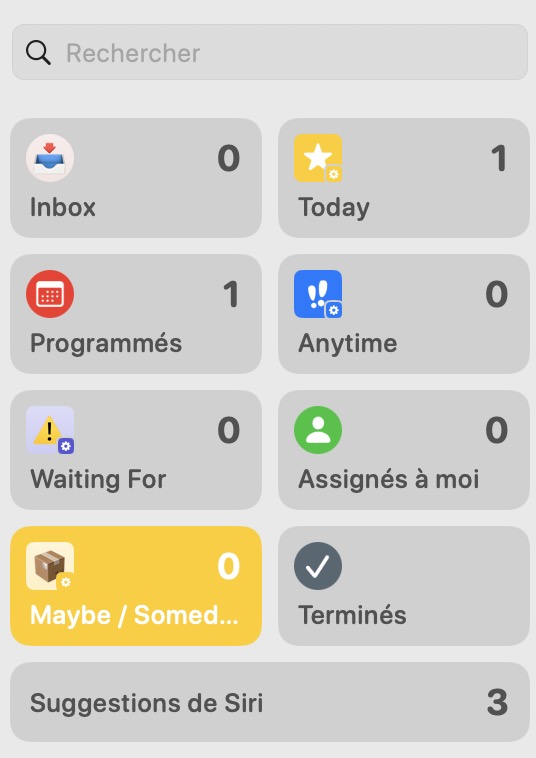
Reminders 7.0 mix of default and smart (those with small gears) lists
Reminders (in a bit more details): Group (folder of Lists) -> Lists -> Sections -> Tasks -> Sub tasks.
Only tasks and sub-tasks can have notes and URL. In Reminders, you can also directly attach a photo, a file or scan a document. This is something still impossible to Things.
Only tasks and subtasks can be marked as completed.
If a List is used to house a project, then you will need a “list info” task that can include notes and URL at the top if you want some context to your project. But such a task cannot sit at the very top of a List if Sections are used.
Tasks and sub-tasks can be made to repeat.
A Completed Group could be created to house completed lists if lists are used as project containers.
A task or a section cannot be converted to a list (or section to a task) from any menu options.
You can assign a date (and a time), and also an early reminder date/time, a location reminder and even a reminder with using Message to tasks and subtasks.
Even better, you can enter a task in natural language and Reminders will recognize things like dates (either as specific dates or concepts like tomorrow, next week…) and so on automatically.
You can search through all tasks.
You can create customizable Smart Lists based on **multiple conditions**, including tags, flag, dates, location …! This allows you to create key Lists like Anytime (to mimic Things) or the GTD list Waiting For, which still does not exist in Things (but you can filter with a “Waiting” tag). It also means that you can have tasks (and sub tasks) displayed in multiple lists! You can also pin any list at the top to customize you app (it will follow across all of your Apple devices).
Did I say location-based reminders (!) as well as reminders when writing (via Apple Messages app) to someone. In Things, the only way to do this is to set-up a personal automation in Shortcut and go over this process for each location. Kudos to Apple for their implementation in Reminders.
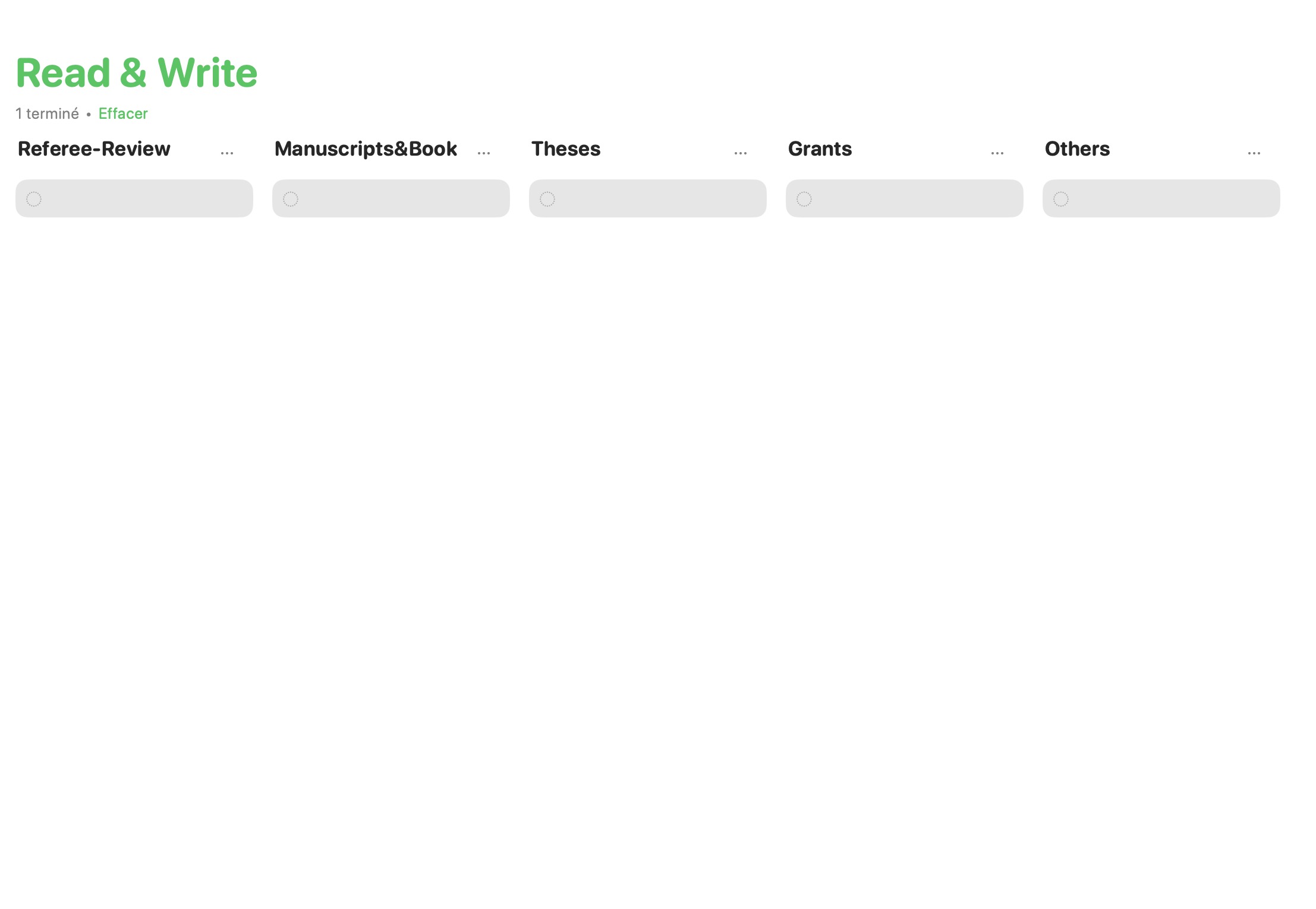
Allows for Kanban style (!) handling of tasks with the new column view. This is extremely useful for many things including what I call lists of never-ending tasks/projects (e.g. reading list, reviewing list, …) using Section as topics, tasks as projects and sub-tasks as tasks. Years ago, I developed something similar to extract information from Things SQLite database and this was pushed even further into KanbanView available in the Apple Store. Again, kudos to Apple for having this option in Reminders.
Column (Kanban) view of a List with Sections in Reminders
Clearly, this latest version of Reminders has a very interesting set of features, many beyond Things current options. But it also has a few interface quirks.
The fact that it is not possible to easily transform a task to a project (List in Apple nomenclature) is one of them.
Not being able to have URL and descriptive text for a List if used as Project holder is also a major drawback.
When looking at tasks that can be done at anytime (i.e. Anytime List), in Things you see only the first task under a given project (with an option to see the rest). This really helps focusing when it is time to select what you will be working on today. In Reminders, you either have to collapse everything, and only see the project title, and expand and see everything. So if you have a large number of tasks and projects, this becomes extremely crowded and, let say, unproductive.
Finally, not being able to check as completed a List makes the whole hierarchy less logical to use than Things or OmniFocus.
I must say that GUI-wise and ease of use, Things remains the best task manager out there. It has an extremely clean and sleek interface, making it very easy and fun to use (and look at). As a bonus, it is still available as pay once use “eternally” i.e. not a subscription model…at least for now (and new major versions happen only once every 5-6 years!).
In conclusion, if you have an Apple device, I think that you do not have any reason to pay for a task manager anymore. You already have everything you need available on your device out of the box. It offers enough features, even for the most demanding GTD followers, so it should easily satisfy the vast majority of users.
For many, productivity is a synonym of work productivity. This year’s pandemic had many reassessed this very narrow definition. In fact, at this year major meeting in my field (www.aapm.org), the issues related to coping, adapting, productivity and so on associated with the COVID situation has been at the forefront of the meeting.
Second, many thanks to Alexander Willner from Berlin, Germany for making the script fully compatible with both the stock 2.7 (coming with any recent macOS version) and 3.6 version of python. Furthermore, he introduce dynamic home folder as well as default output in the same directory as the script path. This removes the need of previous version to edit the script to change the unix user name in the file path. As such, the new version is extremely easy to run . Better, follow the instruction (method 2) given here and make it a system service, assign a keyboard shortcut and never, ever run python directly yourself!
Quite surprisingly, I hadn’t written html code since I completed my PhD in 1996. From 1993 to 1996, I created and maintained our research group webpage. At the time, we were one of the few to actually have sites. Well, it does come back and boy it much easier than anticipated (at least at the current level) 😉
Task manager applications are great. They help you get things out of your head and easily accessible. One of the major issues with task manager applications is higher level planning, particularly on the fly decision about committing or not a new project. This is because you need in one look an overview of everything going one right now, including deadlines. This is something not easy to do only with a Task Manager and your electronic calendar apps. Also for what I am thinking about, a planning software is not that useful either. I tried OmniPlan for that purpose alone, maintenance is higher than I would like and I am still not convinced this is the best way of doing it.


 Ruminating...