“Automation is not about replacing humans, it’s about freeing them to do more intelligent and creative work.” – Unknown
I have been using ChatGPT as a high-hand virtual Notetaker assistant by OCR’ing screen captures, photos or PDFs of my handwritten notes for a while now. These could be paper notes or from an e-ink tablet (I have been using Supernote Manta for the past few months), but the advantage of AI is that it can use context to complete notes that are difficult to read (you know, bad writing). It can also identify future commitments (meetings and so on) as well as action items (tasks).
I recently started to toy with Claude Cowork as part of Claude desktop application on the mac. The combination of Chat, Cowork and Code in an application for which you can allow certain automated operations and access on your computer opens up interesting possibilities (and the fact that you can explicitly opt-out of sending data for Anthropic is a plus).
First, Claude has user-created “skills” that are used every time certain actions are performed. For one, this allows one to imprint specific requests to create a virtual Notetaker assistant from OCR files. However, you can do much more and have Claude automatically create files by giving authorization to perform certain actions or write a dedicated folder, for example. You can further ask the virtual note taker to extract tasks from your meeting notes.
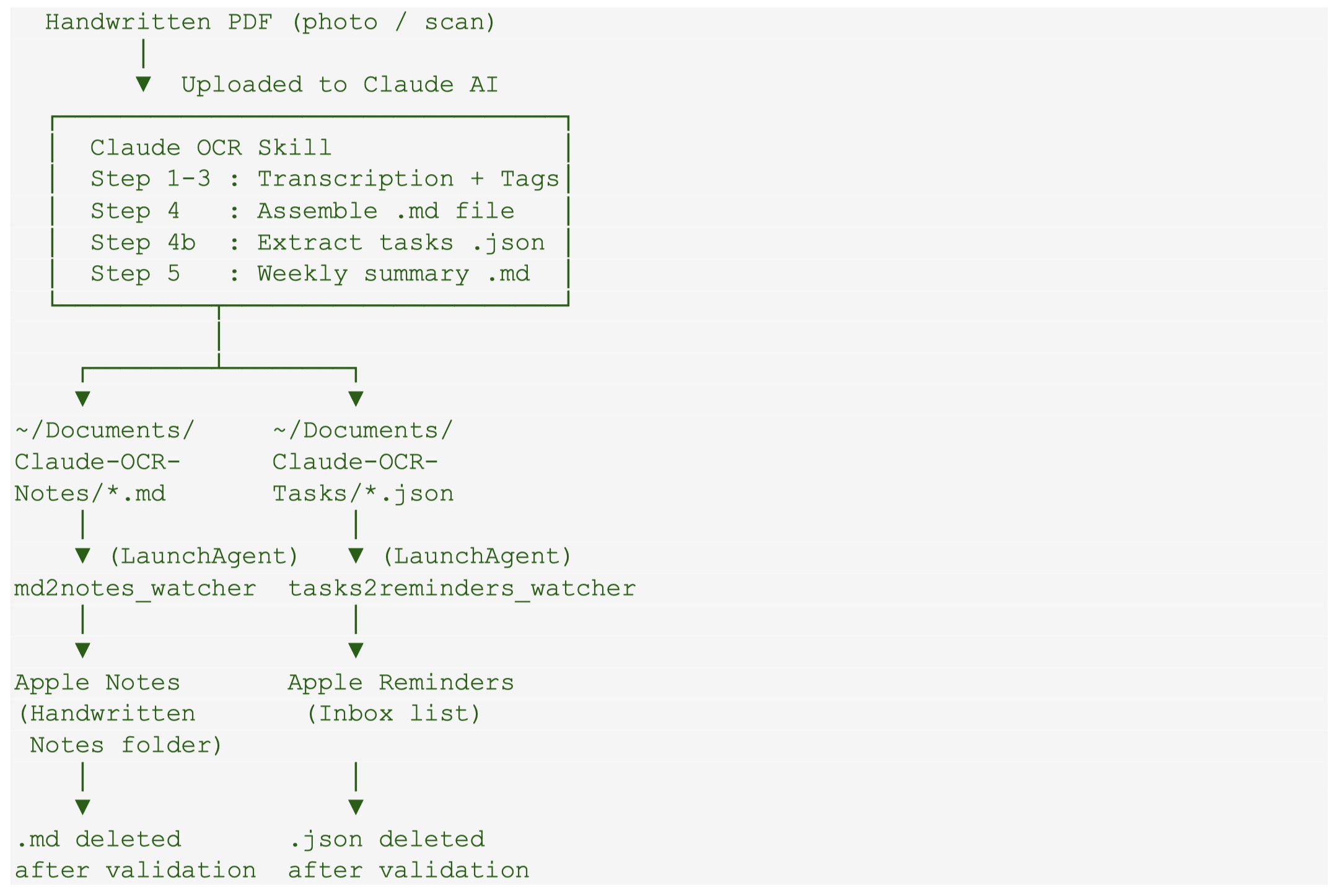
Based on the above, I ask Claude to create folder automation that automatically imports markdown meeting notes to Apple Notes as soon as Claude writes the file to a dedicated folder. The virtual Notetaker further generates a JSON file with extract tasks to another dedicated folder with another automation that captures and imports them in the Inbox list of Apple Reminders.
Figure. The workflow of the automation created to go from handwritten notes to transcribe notes in Markdown in import in Apple Notes as well as extract tasks to Apple Reminders Inbox list.
It took a few back and forth with Claude, but it generated all of the codes, the install shell script to run in the terminal, giving permission to access certain folders and perform certain actions, and finally, the packaging for a GitHub project, which can be found here.
It is freely available (fully generated by Claude based on my prompting) to test and modify. Of course no guarantee provided.
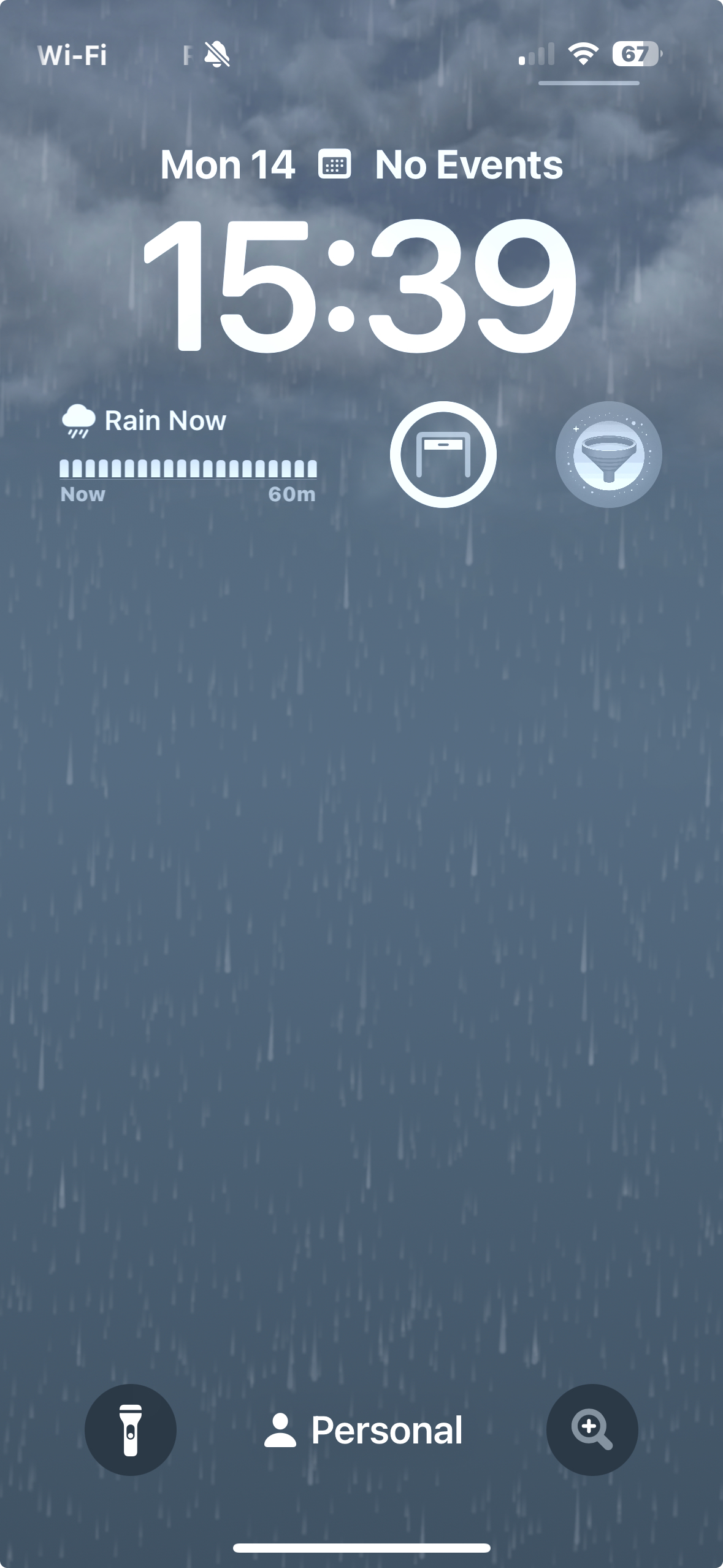
The best capture tool is the one you have with you…at all times. These days, this most probably means your smartphone. Welcome to NoteSight Labs iOS Funnel App. This small app, written by software engineer Dharam Kapila, sits as a widget on your lock screen to be called upon by tapping on the funnel icon (see left image below).
Funnel App icon on the right below the time
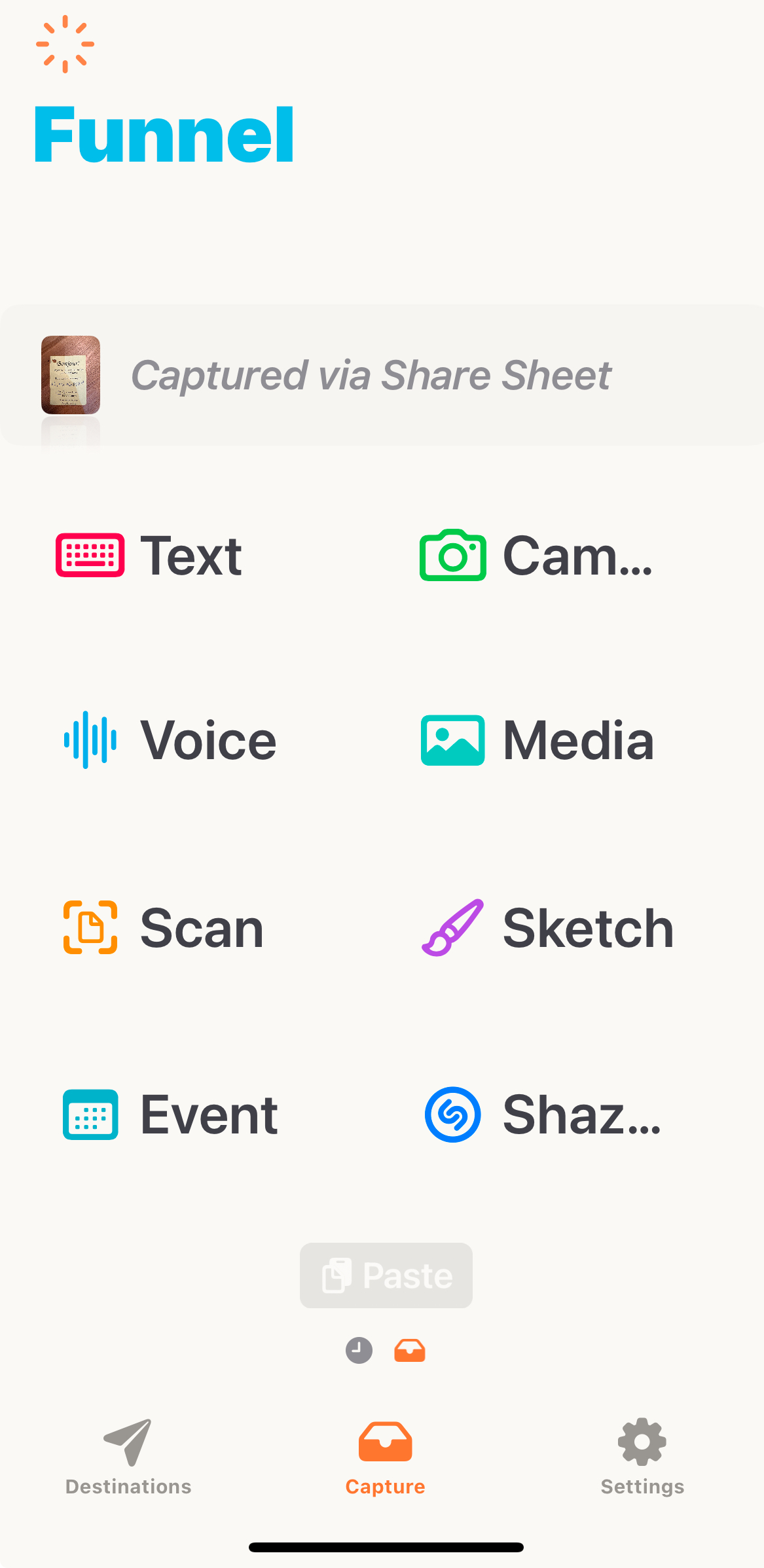
All capture options: text, photo, voice, scan or more.
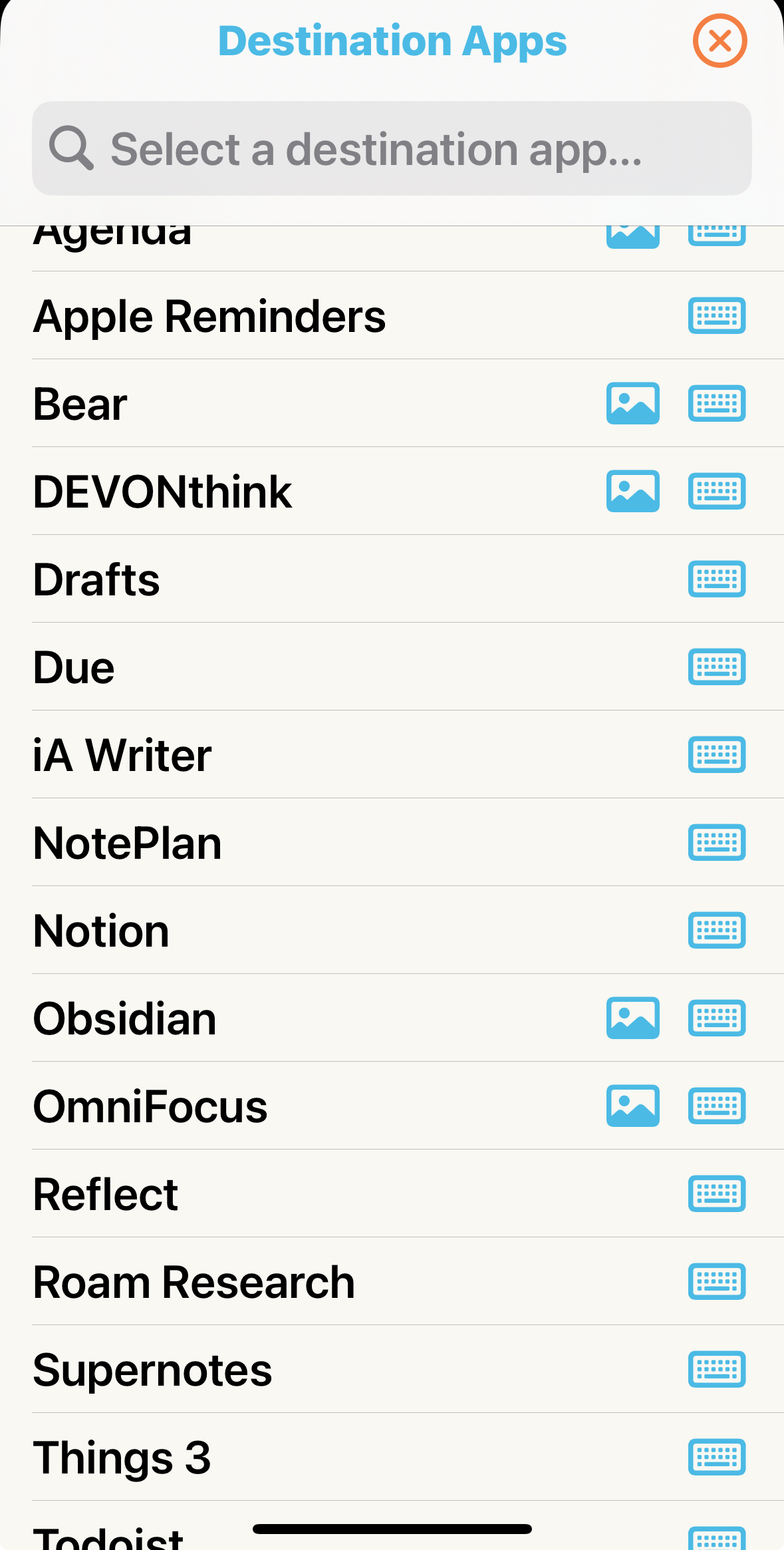
Possible destination Apps. You can customize (see text)
Funnel makes capture idea, tasks and other “inputs” (middle image above) on the fly extremely easy and once that capture is done, you a second click away from your destination (right image above), which can also be configured. In my case, I have two main Inboxes for quick capturing: on in my task manager (Apple Reminder or Things 3: both in the Inbox) and one in my document manager (DEVONThink, using the global Inbox).
The App further support Apple Advanced Data Protection for end-to-end encryption when using iCloud and the Pro version cost 19.99$/year for unlimited capture and access to new feature as they rollout. Since purchasing this app, I have seen frequent update justifying its 1.67$/month no issue.
There you have it, everyday on the fly capture with almost no friction.
“Your time is limited, so don’t waste it living someone else’s life.”
– Steve Jobs
The COVID pandemic made many of us realize that we were spending a lot of time on things that brought very little in terms of quality of life or productivity. Transit time was a clear example, with many of us spending hours daily in traffic. This time suddenly became available, and we loved it. We discovered that tasks we had been putting off became “easy,” or at least easier to tackle. For me, the second item I was trying to get a handle on was the time spent on emails.
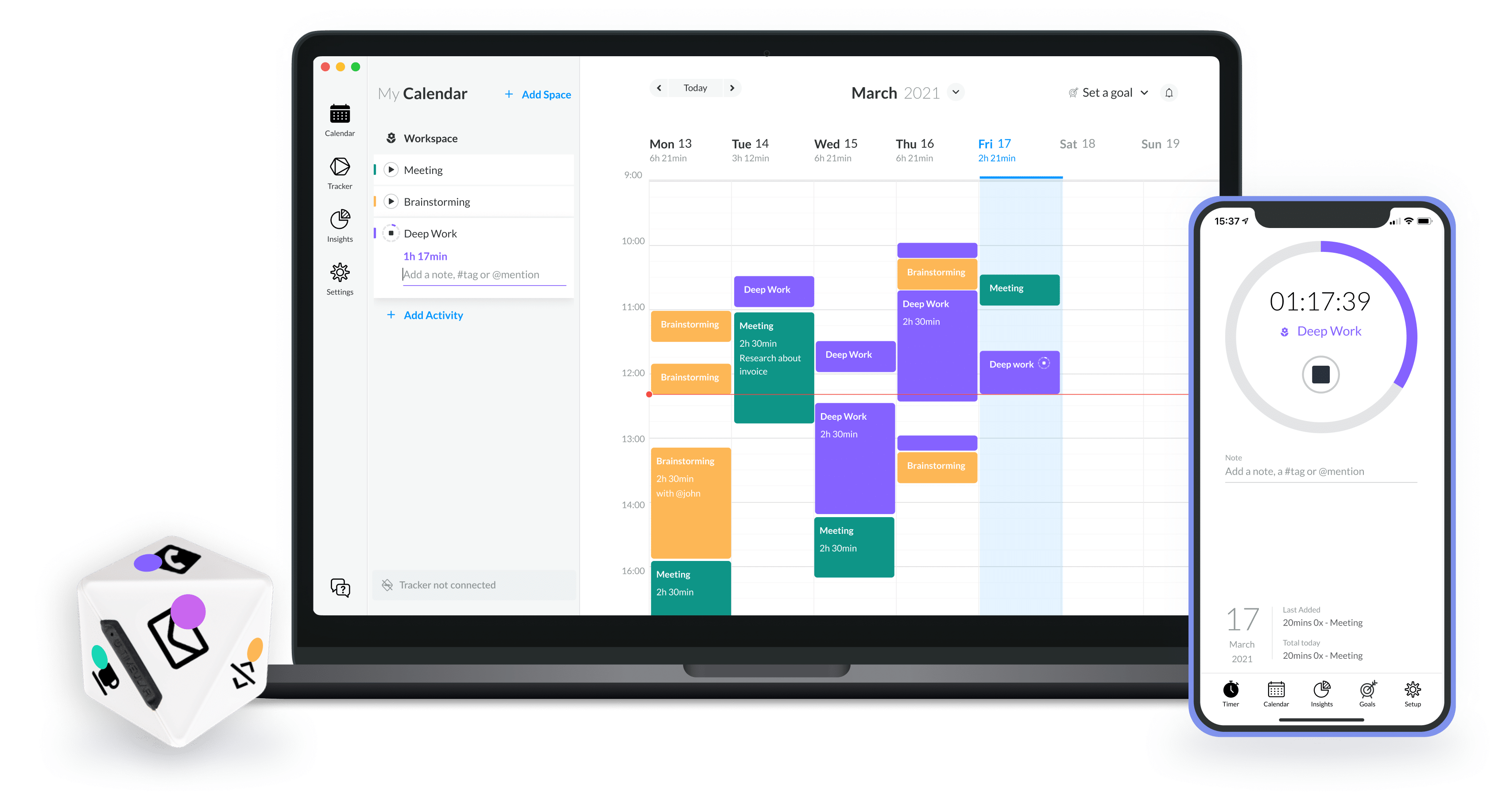
After listening to the Time and Attention podcast by Chris Bailey, I decided to try Timeular, which combines a physical device with software. The device is an eight-sided tracker that detects which face it is resting on. In the software, each face is associated with an activity. Tracking stops when the tracker is placed on its holder, though you can also manually enter time in the software.
After using it for more than 18 months, I wish it had 10 or 12 faces, as there are things I would like to track in finer detail (and I do not want to buy a second tracker). However, it is sufficient for a broad overview in an automated fashion.
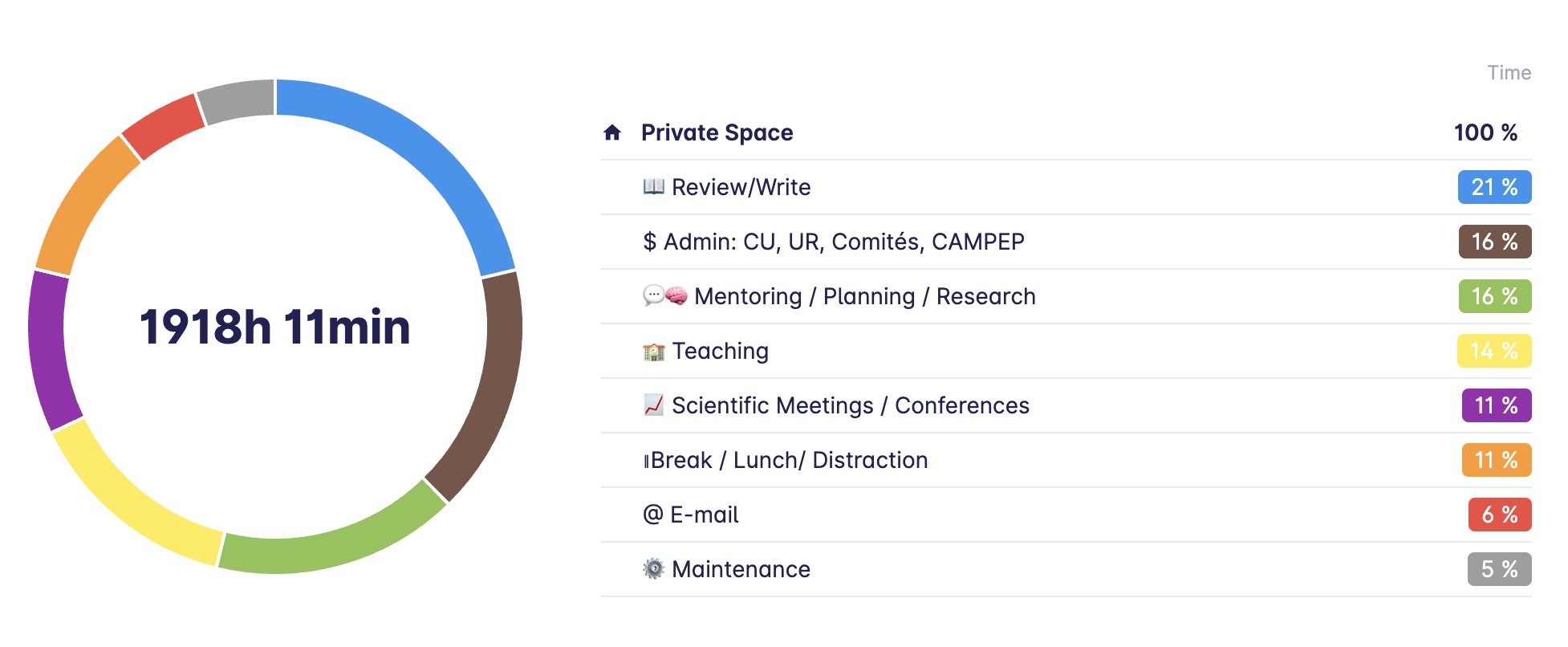
I set up the tracker with the following categories:
Review/Write: This includes all reviews of trainees’ manuscripts, master’s and PhD theses, as well as my own writing. I would prefer to have writing as separate categories.
Research, Planning and Mentoring: I combine these since much of the mentoring is linked to planning research projects, experiments, data taking, and analysis with trainees.
Teaching: This encompasses formal undergraduate and graduate teaching activities, including preparation, in-class time, and grading.
Maintenance: This primarily involves my weekly review and a few related tasks, such as annual reviews, all ensuring that my system works and is always up to date.
Administrative Duties: This includes institution committees, CAMPEP program-related activities, etc.
Scientific Meetings and Conferences, self-explanatory.
Break, lunch time and other distraction that arise during the working hours.
Note that I do not track my vacation time, transit time (though perhaps I should!), jogging/training time, screen time outside of work, social media time, etc. Timeular now has (in beta) an automatic tracking feature for the applications you use, in addition to the tracker itself. In the Apple ecosystem, Screen Time tracking across all your devices is also available.
In 2023, the first full calendar year I recorded, I logged over 1900 hours despite being on strike for several weeks and taking my full vacation allotment (23 days vacation + 12 days spread out through the years). It was an excellent year, with significant achievements including graduating 15 trainees, contributing to committees for 6 more, and publishing 14 manuscripts, one of them being an international report and another a first-in men clinical trial for a novel technology project I have been involved with since 2011.
For those who wonder about break/lunch, only 11% of these hours were in that category. This is on the low side for a creative field such as scientific research. Note that if you take a 5-minute break every hour, 1 hour for lunch and work 8 hours, this results in a 580-minute day, with 100 minutes (17%) being break/lunch time. According to one extensive time-tracking study, the top 10% most productive people take even more break with a 17-minute break for every 52 minutes of work.
Interestingly, teaching was only my fourth most time-consuming activity. This includes time spent in class as well as preparation and grading. This is because during the summer semester, when there is no formal teaching, I dedicate 100% of my time to other activities, primarily research. In the Fall and Winter semesters, the time dedicated to teaching increases significantly.
In 2023, I spent 6% of my time on emails, totalling 115 hours. Think about it, this is close to 3 weeks per year! When I started time tracking, my average was nearly twice that. I very quickly changed my email habits by:
Avoiding emails in the evening (I really try to stick to this as much as possible).
Using a VIP list for urgent emails.
Reducing the frequency of checking my email during the day.
Avoiding emails on weekends.
Within a few weeks, my average email time reduced to an average of 34 minutes during workdays. This includes an end-of-day inbox cleanup, when quickly reply to things that take less then 2 min and transform into a task anything that needs more serious attention or work. I do a deeper cleanup of all of my inboxes, including e-mail, during my weekly Maintenance session. I further notice that my average tracking entry length when up from 38 min to 61 min, leading to better use of larger chunk of time during the day.
I schedule a Maintenance event in my agenda every Friday afternoon for 90 min. This is were I review all of my inboxes, get everything sorted in my task manager and document manager, review ongoing projects, Waiting For tasks, backburner projects, …, review the previous week and plan the upcoming week. Some weeks, I need less than 90 min and others I will take a full 2h. I am also planning 1.5 days before the Holidays break for a full review and cleanup of all of my completed projects (archiving documents and e-mails associated with those projects as needed) and set the stage (high altitude planning) for the upcoming year. Overall, this account of 5% of my time (110h last year) but this is an investment and the return on that investment pays for itself.
In 2023, mentoring, research planning, and reviewing documents took up the largest share of my time at 37%. Including time spent at scientific conferences, this accounts for nearly 50% of my time in direct service to research activities. I suspect that this will and should be true every year. This is also quite interesting as for a long time, I held a position where I was 50% clinical medical physicist and 50% research physicist. Moving to a university position, did not change the amount of time dedicated to research (and related activities) in the end…
Administrative tasks represented about 16% (or 307h) of my time in 2023. Some of these are built-in my job e.g. the direction of our CAMPEP program, our department faculty meetings and so on.
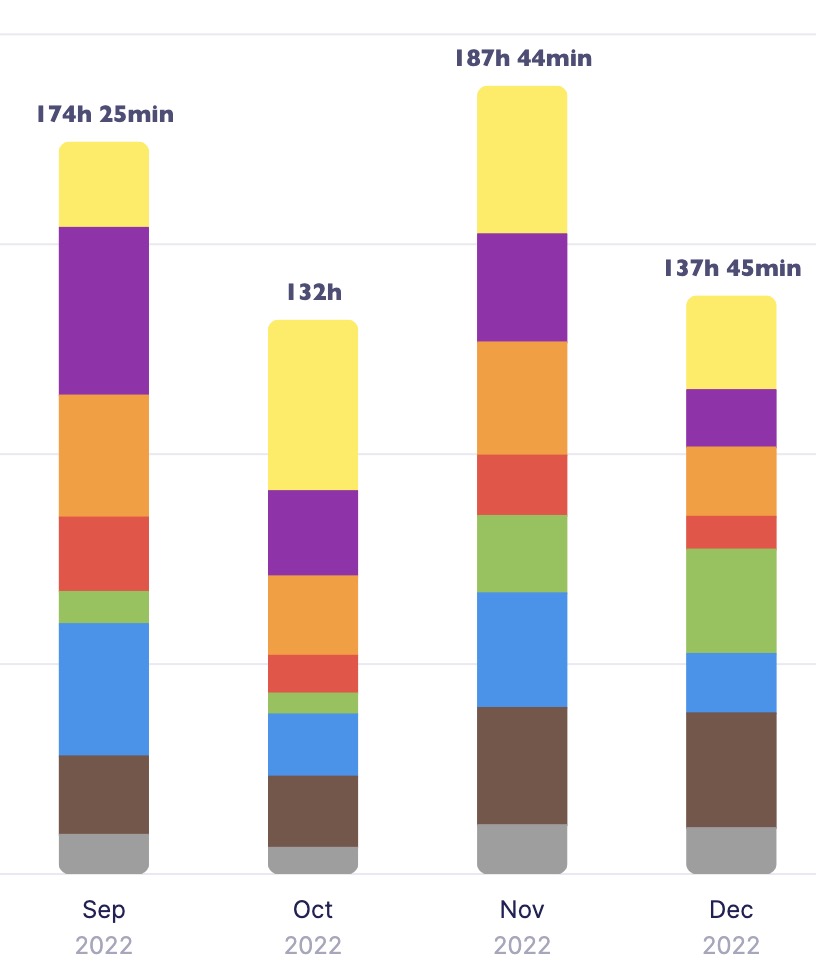
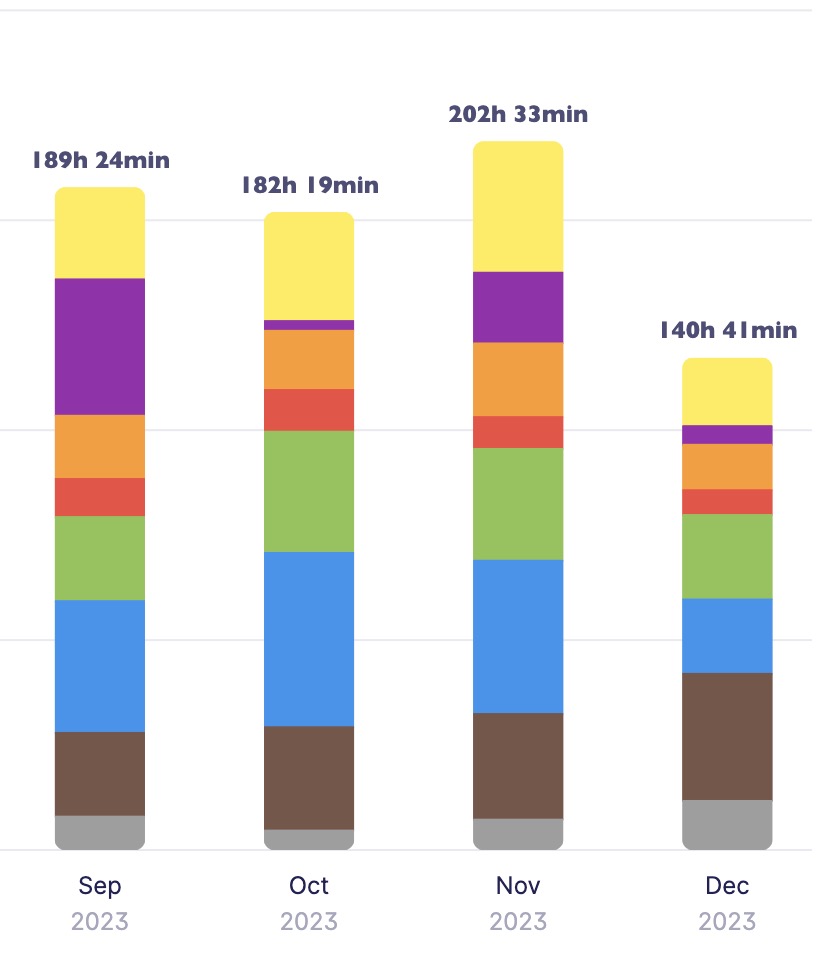
Comparing the Fall semesters of 2022 and 2023, I noticed a pattern. September (start of the school year for us in Canada) and November are particularly busy, with a higher workload due to grant proposals, recommendation letters, and administrative tasks. December is also intense due to year-end activities.
The number of hours/month logged in these 4-month periods is:
1- Higher on average than the rest of the year. Furthermore, September and November have the highest time logged in both years. The monthly average for the other months is around 153h/month (for 2023, the only full year I have).
2- September (entrance, grants, letters, …) and November (everyone want their things done before the holidays and usually little happen past December 20th or 21st on the admin side, just the professors grading their finals) require a higher output, usually well above our work contract (on average this is always true, but still much higher)
3- October 2022 was low but there was also mortality on the family. In December, considering that I am out for a full weeks, it seems a lot had to be done in a short amount of time and this is true for both 2022 and 2023.
In conclusion, time logging offers valuable perspective. It has helped me manage my email time more efficiently and recognize the actual hours spent “truly” working. As a creative professional, tracking time reveals that one might work fewer hours than perceived, given the brain’s limitations in sustaining concentration on creative tasks for extended periods. Since the pandemic, I have been trying to reduce my work week by concentrating on what I consider key tasks/projects, folding in the need for breaks. I have clearly failed in that regards for the Fall of 2023, but it was also an extremely satisfying four months
Let’s start with a small disclosure: I have been a user of Things since version 0.7b, except for a short period of frustration with version 2 that sent me toward OmniFocus. However, hope was up with version 3 but did not move back until a truly usable version 3 became available. In the last 15+ years, I have also tried a few others, in particular Wunderlist (now MS To Do) that I recommended for years to students (as it was full-featured, free and cross platform) and ToDoist.
Now, the latest version Reminders (7.0) has introduced a number of interesting features that makes Reminders an attractive task manager, at least enough to look at seriously.
A reminder (no pun intended), Things 3 follows closely the GTD framework and have an organization structure that goes from higher altitudes containers to day-to-day doing starting with Areas, followed by Projects, … down to Tasks and Lists (sub-tasks). This can be done in Reminders but you have to decide if you can live with Lists as project holders OR use tasks as a project holders and sub-tasks for actual to do items. Here is a breakdown of the hierarchy for the two apps.
Things (succinctly): Areas (folder of Projects) -> Projects -> Headers (category dividers within a project)-> Tasks -> lists (sub-tasks).
In Things only projects and tasks can have notes and URL.
Projects, tasks and subtasks can be marked as completed.
Projects and tasks can be made to repeat.
A task can very easily be converted to a project (while conserving its notes, URL and tags). Headers can also be converted to projects.
You can assign due date and reminder dates to projects and tasks. I do assigned due date to projects that have a well-defined ending but a tend to refrain to assign them to tasks. I do use reminders for key tasks, though.
You can search through all tasks by words but also sort by tag or a combination of tags.
Integration of calendar events in your Today list as well as the Upcoming list. This is extremely useful when planning ahead!
Things 3 default lists
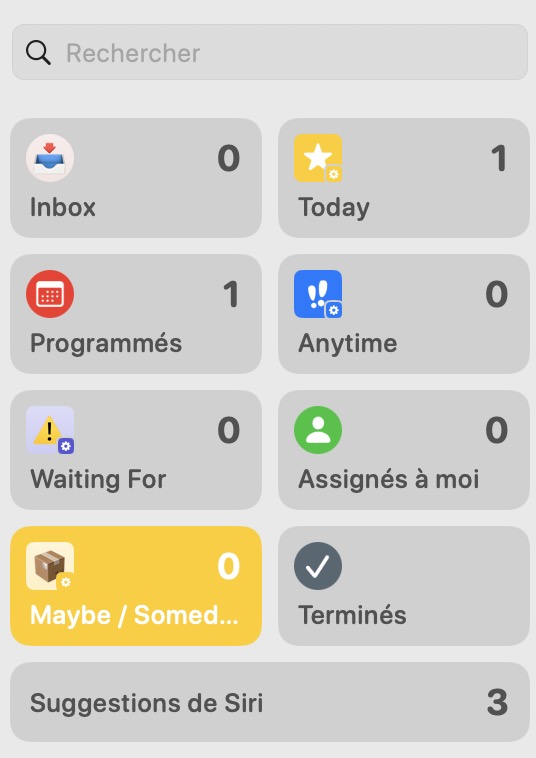
Reminders 7.0 mix of default and smart (those with small gears) lists
Reminders (in a bit more details): Group (folder of Lists) -> Lists -> Sections -> Tasks -> Sub tasks.
Only tasks and sub-tasks can have notes and URL. In Reminders, you can also directly attach a photo, a file or scan a document. This is something still impossible to Things.
Only tasks and subtasks can be marked as completed.
If a List is used to house a project, then you will need a “list info” task that can include notes and URL at the top if you want some context to your project. But such a task cannot sit at the very top of a List if Sections are used.
Tasks and sub-tasks can be made to repeat.
A Completed Group could be created to house completed lists if lists are used as project containers.
A task or a section cannot be converted to a list (or section to a task) from any menu options.
You can assign a date (and a time), and also an early reminder date/time, a location reminder and even a reminder with using Message to tasks and subtasks.
Even better, you can enter a task in natural language and Reminders will recognize things like dates (either as specific dates or concepts like tomorrow, next week…) and so on automatically.
You can search through all tasks.
You can create customizable Smart Lists based on **multiple conditions**, including tags, flag, dates, location …! This allows you to create key Lists like Anytime (to mimic Things) or the GTD list Waiting For, which still does not exist in Things (but you can filter with a “Waiting” tag). It also means that you can have tasks (and sub tasks) displayed in multiple lists! You can also pin any list at the top to customize you app (it will follow across all of your Apple devices).
Did I say location-based reminders (!) as well as reminders when writing (via Apple Messages app) to someone. In Things, the only way to do this is to set-up a personal automation in Shortcut and go over this process for each location. Kudos to Apple for their implementation in Reminders.
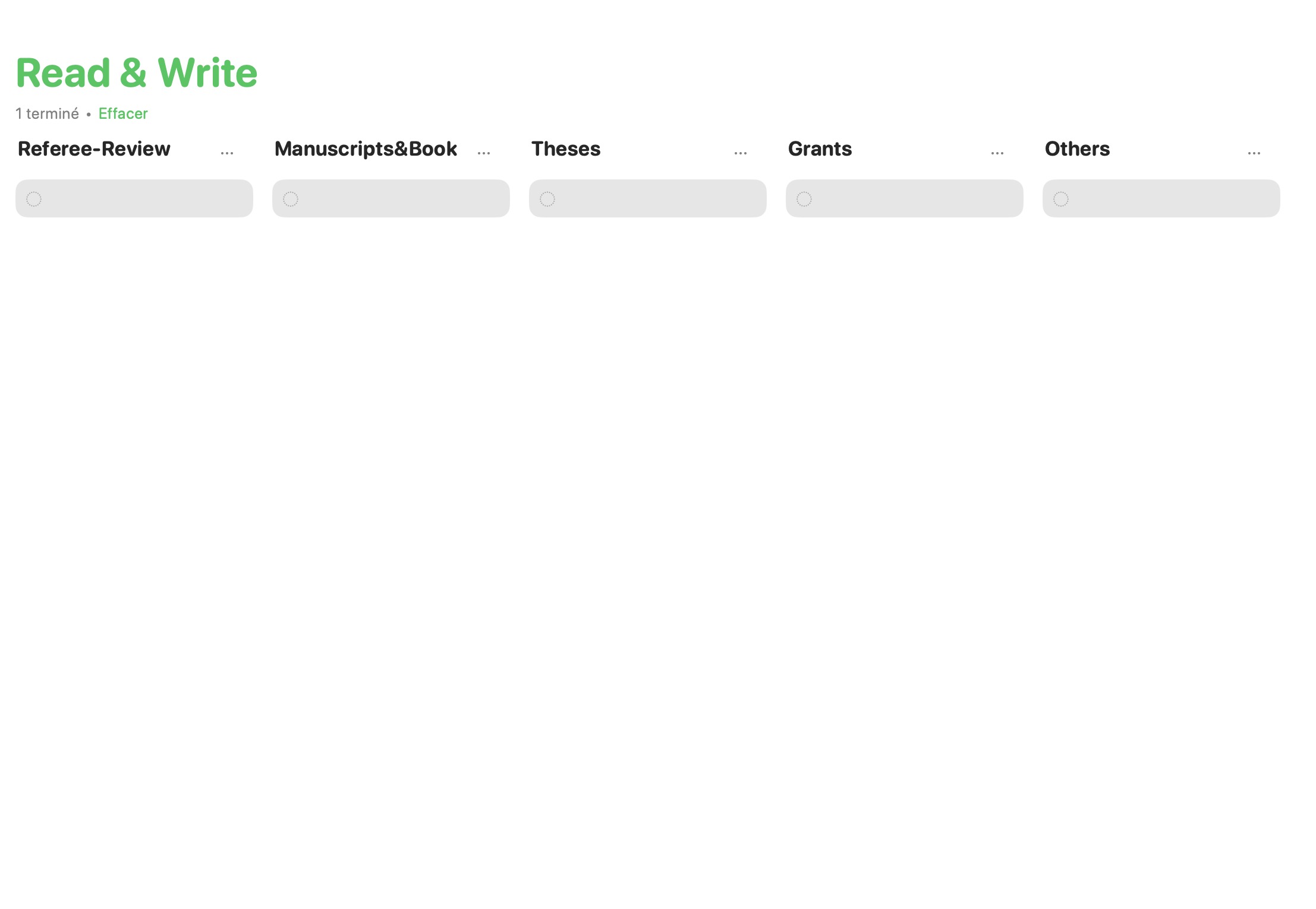
Allows for Kanban style (!) handling of tasks with the new column view. This is extremely useful for many things including what I call lists of never-ending tasks/projects (e.g. reading list, reviewing list, …) using Section as topics, tasks as projects and sub-tasks as tasks. Years ago, I developed something similar to extract information from Things SQLite database and this was pushed even further into KanbanView available in the Apple Store. Again, kudos to Apple for having this option in Reminders.
Column (Kanban) view of a List with Sections in Reminders
Clearly, this latest version of Reminders has a very interesting set of features, many beyond Things current options. But it also has a few interface quirks.
The fact that it is not possible to easily transform a task to a project (List in Apple nomenclature) is one of them.
Not being able to have URL and descriptive text for a List if used as Project holder is also a major drawback.
When looking at tasks that can be done at anytime (i.e. Anytime List), in Things you see only the first task under a given project (with an option to see the rest). This really helps focusing when it is time to select what you will be working on today. In Reminders, you either have to collapse everything, and only see the project title, and expand and see everything. So if you have a large number of tasks and projects, this becomes extremely crowded and, let say, unproductive.
Finally, not being able to check as completed a List makes the whole hierarchy less logical to use than Things or OmniFocus.
I must say that GUI-wise and ease of use, Things remains the best task manager out there. It has an extremely clean and sleek interface, making it very easy and fun to use (and look at). As a bonus, it is still available as pay once use “eternally” i.e. not a subscription model…at least for now (and new major versions happen only once every 5-6 years!).
In conclusion, if you have an Apple device, I think that you do not have any reason to pay for a task manager anymore. You already have everything you need available on your device out of the box. It offers enough features, even for the most demanding GTD followers, so it should easily satisfy the vast majority of users.
Over two years ago, I made a proposal for a 20 000-foot Kanban-like visualization concept for Cultured Code Things 3 task manager. This was in order to go beyond the day-to-day task level and, in a single look, provides a portrait on everything on your plate. The very first version was made available based on my (limited) SQL, Python and modern HTML coding 😉
If you loved those high resolution (1080p or 4K HDR), slow motion movies that are used for screensaver on Apple TV, you will love Aerial that bring these features for macOS (same movies, both day and night settings).
You love those high resolution, slow motion movies that are used as screensavers on the Apple TV? Aerial brings those same movies (1080p and 4K HDR) to your macOS systems to be used as screensavers with a few added bonus such as superimposing the weather, time, battery status (for a macbook) and so on.


 Ruminating...