For the last few years, twice a year I pledge to my family (and myself) not to open once my e-mails for at least two weeks. At the start of this new year 2021, as I open my e-mail app this morning, over 664 e-mails were waiting for me.
Continue readingTag Archives: SaneBox
Dealing with E-mails in Academia I – Basic Ethos
E-mail is at the same time an efficient communication tool and a big productivity disruption that can occupy up to 23% of your daily working hours. In fact, if you do a search for e-mail and productivity on Google you will get over 260 000 000 (that is right!) hits. This should tell you that for many managing e-mails is a serious modern problem. Furthermore, considering that your brain require a reset time to get back to a deep focus level needed to accomplish key tasks such as writing manuscripts, grants and so on every time you are disrupted, looking at your e-mail you essentially trigger that “reset” timer. The toll on your work could be disastrous.
An Efficient and Fun iOS E-mail App: Spark by Readdle
Except for a few months of BitNet e-mail on a VAX mainframe server, I have been using the default UNIX mail app for almost 25 years now. Started with a SUN workstation, moved from SunOS to Solaris, Linux RedHat distribution (and a few others) and ended up on OSX. The nice thing about this is that all my e-mail archives transferred easily from one UNIX flavour to the other!
Getting your Inbox to zero quickly and easily with MailHub, an “AI” add-on to Apple Mail!
There are numerous tools and recipes to help you get your e-mail Inbox to zero. One popular choice is indev MailTag and MailActOn. The nice things about indev software is that they plugged right in Apple Mail. Mail Act On is very powerful but requires you to build and maintain all the rules or act on “actions” you create. Also like its use for files, tagging does have limits, in particular when you have a large number of them: it simply does not scale easily. Finally using the combination of MailTag and MailActOn to deal with and file e-mails is not highly efficient when compared the way I am filing my load of weekly digital documents using DevonThink built-in Artificial Intelligence (AI).
One option would be to throw all of your e-mails in DevonThink but Devon is not a Mail program. I also like having e-mails from all of my on-going projects live on the corporate (University) server: accessible everywhere and backup for me!
Here comes Dervish Software MailHub to the rescue. MailHub is a plug-in to Apple Mail that adds intelligent “DevonThink like” filing capability to all of your mailboxes. When I say all mailboxes I really means for all that you asked MailHub to index: Work computer, Exchange/IMAP mailboxes, local mailboxes (I do have over 20 years of e-mail archives of the projects I completed over the years), iCloud and GMAIL. No time spent to create rules or actions, no upkeep “cost”. To be fair it does more than that but the intelligent filing with either a single keyboard shortcut or a single click (you have the choice and the keyboard shortcut is user configurable) is what sold me.

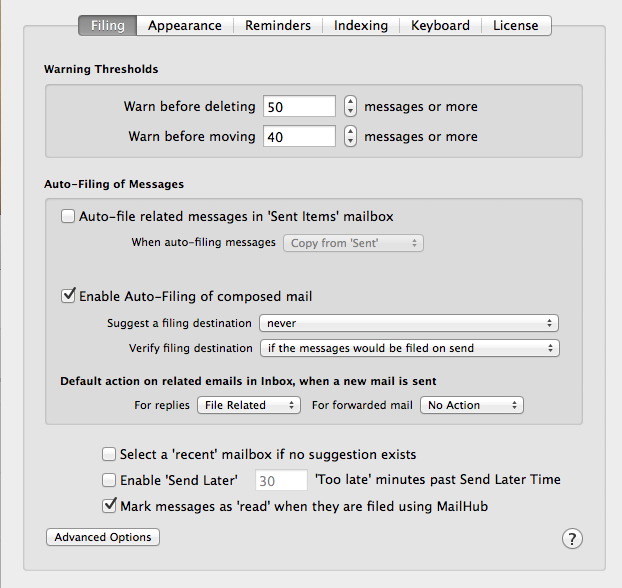
Figure 1 and 2: MailHub addition to Apple Mail preference pane (above) and its options (below)
According to the website, here is a list of what is possible to do:
- Organise your email simply and easily using MailHub’s auto-suggest intelligent technology which suggests where to file your mail based on your previous email activity
- File or delete emails individually, by thread or by sender in one simple process
- Auto-file sent email to its parent mailbox
- Create new mailboxes simply and organically when new filing categories arise
- Set reminders for email related actions at the touch of a button
- Preview changes before making them / undo changes as required
I will not go through MailHub option tabs as shown in the previous figure. Once you have MailHub install you will notice that Apple Mail now have a new toolbar. I set mine to blue (it is one of the appearance option) in the figure below so you can clearly see it. The most used button is indicated by the black circle. Clicking on it will automatically filed the current e-mail in the mailbox indicated by the black rectangle. Again that mailbox can be local or on a remote server depending on your indexing option. I set MailHub so that all mailboxes, local and server-based, are indexed.
Figure 3: New toolbar to Apple Mail.
If you do not like the filling option (mailbox choice) provided to you by MailHub (black rectangle in the above figure), you can 1) click on the pull down menu to get other choices. This is similar to DevonThink that provides you with its best guest on the top and other choices below it. 2) You can also type in a few letters of a mailbox name in the search bar that will appear at the top of the pull down menu to bring a mailbox to the top. 3) You can also create a new mailbox using the + button shown in the back rectangle region of the above figure. Notice also the arrow, it allows you to automatically jump to the selected mailbox and the home button (green circle) get you back to your Inbox.
Now you probably have picked up that the filling button, indicated by the black circle, also has a pull down menu. This is because you can file the current e-mail, file the entire e-mail thread or all e-mail sent by this specific sender. The delete button beside it (between the black and the red circles) have the same options i.e. selected, thread or sender.
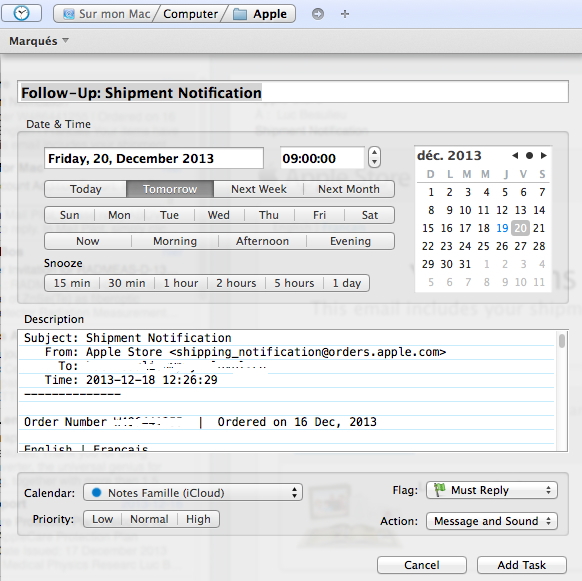
In the red circle, the little clock icon represent reminder options to be set on the selected e-mail. The available options are given in the figure below. It works with Reminder and iCal to set reminders at specific dates and times. An interesting feature is that the complete e-mail content is copied in the reminder as a note. I set it so that the reminder is capture automatically by Things. It works flawlessly. The only major shortcoming to this is that a link back to the e-mail is not provided.I hope that this option is added by Dervish Software in a future release. As such, for now I much prefer using Things keyboard shortcut to create a quick entry in Things that does contain the link back to the e-mailing question.
Figure 4: MailHub reminder options, including setting flags, action and iCal/Reminder.
You will also notice a new toolbar addition when you write a new e-mail or reply to an existing one. This time you have three “send” mail options, the regular one (original top left icon = third button from the left on the new toolbar – Figure below) and two new options: 1) send e-mail and file the sent message (you get to set which mailbox using the pull down menu (“none set” in the image below) or 2) send e-mail and deleted the sent message. I really like the “send and file” option. For many e-mail threads I like to keep copy of my sent messages. This option allow you to skip CCing myself and then file that message: saving further e-mail processing (or taking manually the sent messages and file them, which would also take extra e-mail processing time). You will also notice the clock icon for setting reminder related to the e-mail you are about to send. This gives you the exact same options as explained before.
Figure 5: New post/reply to existing post MailHub toolbar add-ons.
You can download and use MailHub free (full feature sets) for 30 days. I was sold after two days but mileage will vary. Conclusion, 19$ very well spent and, at least for me, much more efficient and cheaper that the combination MailTag and MailActOn. Getting my Inbox to zero has never been so quick and easy, especially when combined with SaneBox (that automatically sort close to 40% of my incoming e-mails out of my Inbox without any action on my part!).
Happy New Year!

Why not give (productivity) software this year!
n.
1. The quality of being productive.2. Economics The rate at which goods or services are produced especially output per unit of labor.3. Ecology The rate at which radiant energy is used by producers to form organic substances as food for consumers.
Why not give yourself or a love one access to well design software? With the new years usually comes the time to take resolution(s). And like most they are forgotten a few weeks later. This is because, we human being, get our attention so easily put elsewhere, diverted by what surround us, in particular the consumption media. So, we tend to get into an unproductive state by putting off what must or should be done. Simply stated procrastinating.
pro·cras·ti·nate (pr-krst-nt, pr-)
v. pro·cras·ti·nat·ed, pro·cras·ti·nat·ing, pro·cras·ti·natesv.intr.To put off doing something, especially out of habitual carelessness or laziness.
v.tr.
To postpone or delay needlessly.
- Professional digital document management: DevonThink Pro Office and DevonThink To Go. On the Mac, you have indexing and AI doing automatic filing for you. No need for Tags. Tagging is a good concept but it does not scale and its efficiency certainly breaks down once you have tens of thousands of files.
- Note taking app: Evernote (free) or NoteBook. I also find Apple Notes useful since it is always with me on my Mac, iPhone and iPad.
- Task manager: Wunderlist (free – perfect for student and much better than Apple Reminder) or professional grade Cultured Code Things and OmniFocus.
- MindMapping software: XMind (free) and iThoughts (Nice interface, intuitive to use, my favorite).
- Project management (for large projects): Merlin and OmniPlan.
- PDF management and citation software: Papers 2 (stay away from the “new” Papers 3), Sente or Zetero (free).
Some software should also allow you to get stuff done so you do not have to. In that category, I could not live in the digital world without:
- 1Password: Strong passwords for all for all of your accounts, safely stored using the best encryption scheme. Never loose time again with passwords.
- SaneBox: Made me realize that over 40% of my incoming e-mails are non actionable. SaneBox get them out of the way automatically for me. I never thought I would say this (I work with e-mail since 1991!!!), but 5$/month well spent. Work with IMAP, Exchange, iCloud, GMAIL.
- MacUpdate Desktop: Unless you get all of your software from the Apple Store on OSX, you need to track your software and keep them up to date. MacUpdate does this for you very efficiently. Run it once a month, no sweat.
- Alfred: Spotlight on steroid!
Getting your e-mail Inbox sorted-out with SaneBox
I receive around 500 e-mails per week to my work e-mail account. About 40% of these e-mails are not “important” in the sense that they do not need any response or action from me. They are rather bulk emailing (yes even from my workplace!), news-related emails and so on. For the past 6 months, almost 10% of my e-mail comes from China and other places to “invite” me to participate to so-called scientific meetings in fields of research that are not even close to what I am doing. Finally of the remaining 60%, only a fraction needs a fast turn around. The VIP option of OS X Mail is certainly a step in the right direction but not full proof.
If you have been following my blog and read the Digital Office section, you know that I keep all of my on-going projects’ e-mails on the corporate (university) server and I link key folders and e-mails to my digital file management system (DevonThink Pro Office) and task manager (Things). I do follow GTD processes when handling my Inbox.
The problem with the low priority, bulk and junk emails is that corporate servers and Apple Mail screening cannot filter all of them properly. Sure you could create rules but you would have to create tens of such rules every week. This takes times and you have to manage those rules afterward. It is not very effective.
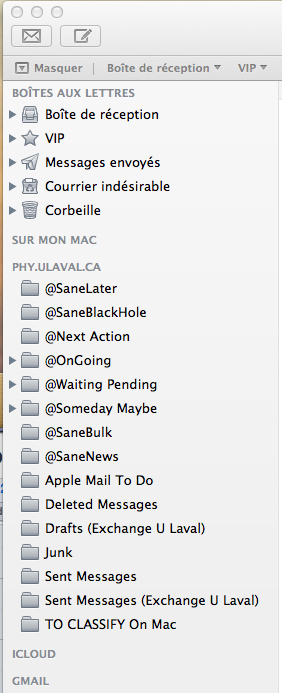
Last July, I discovered SaneBox. I started with the two weeks free trial and decided to stick with it since then. One of the thing I really like of DevonThink is the artificial intelligence (AI) used for automatic classification of files. It would be really nice if the guys at DevonTechnologies did a Mail plug-in to do the same with the tons of e-mails I have (no I do not want to throw my e-mails in DevonThink) but they are not. Welcome to SaneBox! SaneBox adds a layer of intelligent filtering (hope it is not NSA driven!) to your e-mails. It creates extra mailboxes. In my case, the figure below shows four of them: @SaneLater, @SaneBlackHole, @SaneNews and @SaneBulk. The others are mine and I use them for classification once dealt with in the Inbox.
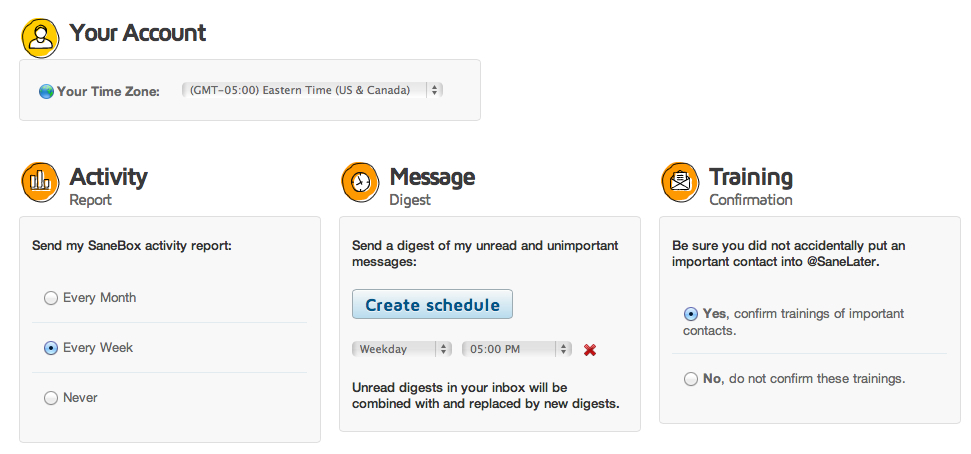
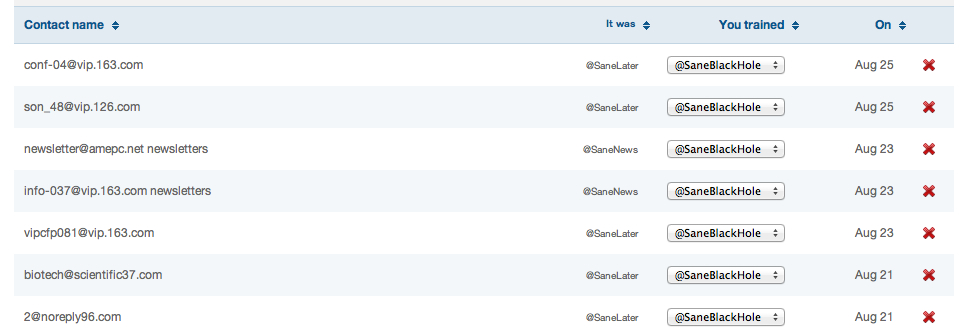
SaneBox redirection of e-mails from your Inbox to its associated folders is not only based on senders and subjects only but also on contents. So for example, once I have trained for a few these “strange” conference invitation e-mails to go to the Black Hole folder (self explanatory 😉 ), most of the new ones, even if the subjects or sender e-mail’s addresses are difference, end up there! You do have the chance to intervene and correct a mistake if needed. In fact you control how much feedback you received from SaneBox and the setting are quite simple. The two figures below shows my current settings and an example of e-mails moved automatically to the @SaneBlackHole box. The pop-up menu let’s you “trained” SaneBox behavior to your taste.
The @SaneNews and @SaneBulk folders are quite self-explanatory. Anything related to bulk e-mailing from work, associations, LinkedIn (and similar), software update alert all end-up in these folders, which you can read – and delete – when you want!
The @SaneLater is probably the most interesting. It is meant for all other e-mails that do not fits the other categories, that are kind of important but do not need your attention in the short term. For example, I received frequent request for graduate studies (a few per day). Since the senders are not usually part of my address book, these e-mails ends-up in the @SaneLater. Like the other folders, you can train them by simply dragging a message from one folder to the other. If you drag a message from the @SaneLater to your Inbox, SaneBox will understand that you want this person’s e-mail to be in your Inbox in the future and vice-versa.
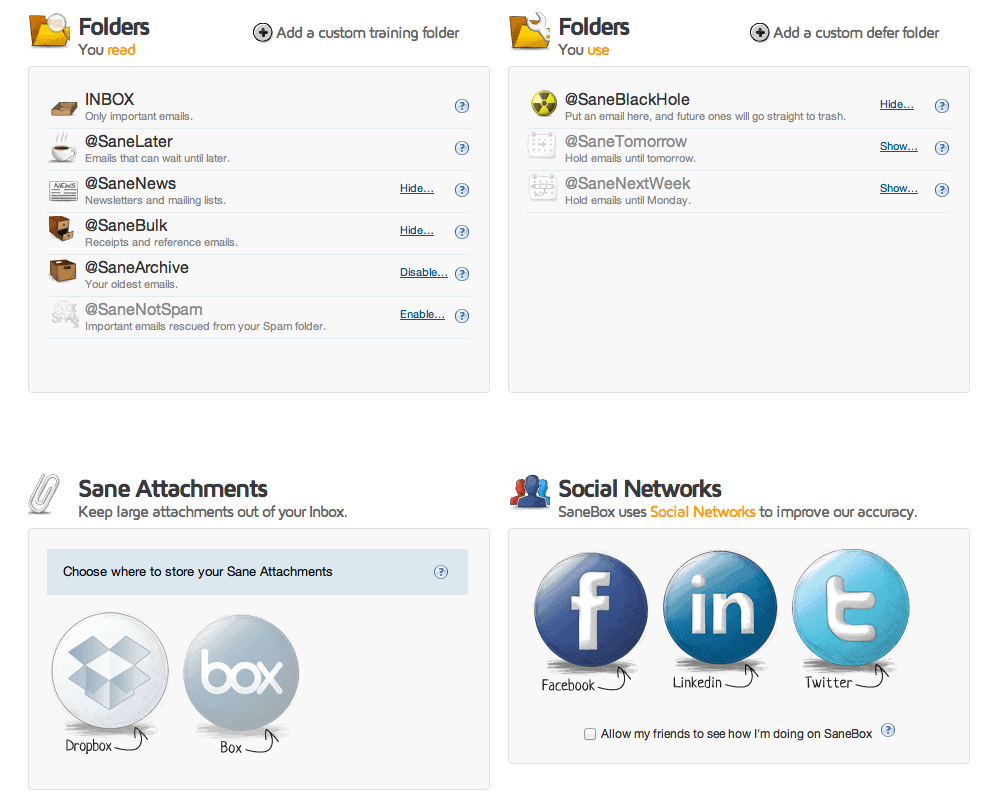
There are a few more folders you can have access to as shown below. I have not used any of them until now.
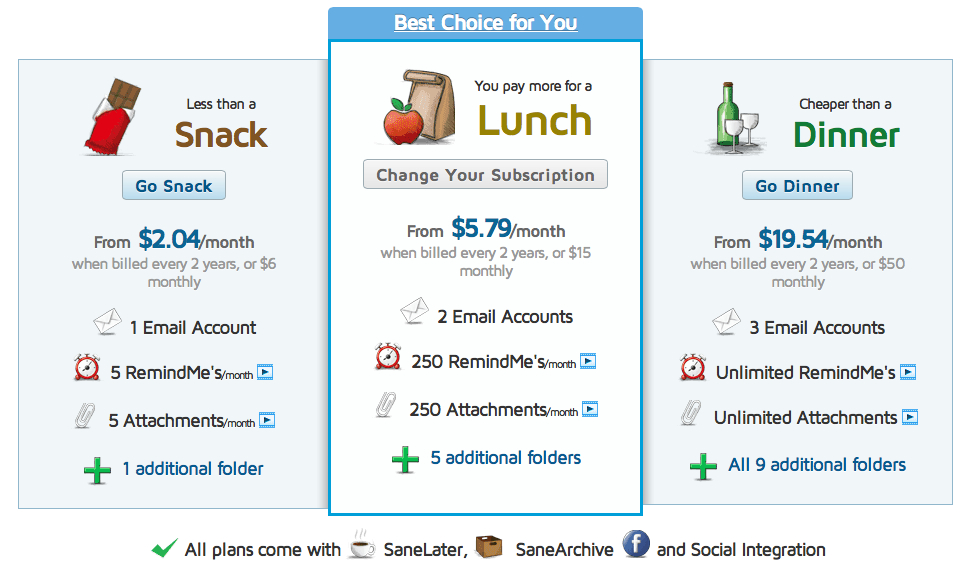
As for the price, on the SaneBox web page, you find three different packages based on the cost of a snack, lunch or dinner. I think my best package would be Lunch with 3 mailboxes. You will also note that you can automatically strip attachment to a dedicated folder on DropBox for example (Attachments option). I do not use this, since all files are transferred to DevonThink for me but this option might be interesting for some peoples.
In conclusion, SaneBox training is easy (dragging e-mails from one folder to another). I found SaneBox classification of e-mails quite efficient, you do not have to think about it after a week or two of training and it performs its work quietly in the background. Note that the extra mailboxes are created on the Server. So it is transparent with iOS Mail application. If you are interested in SaneBox, follow this link (and we both get a rebate!): https://www.sanebox.com/signup/fa39aa9fec