There are numerous tools and recipes to help you get your e-mail Inbox to zero. One popular choice is indev MailTag and MailActOn. The nice things about indev software is that they plugged right in Apple Mail. Mail Act On is very powerful but requires you to build and maintain all the rules or act on “actions” you create. Also like its use for files, tagging does have limits, in particular when you have a large number of them: it simply does not scale easily. Finally using the combination of MailTag and MailActOn to deal with and file e-mails is not highly efficient when compared the way I am filing my load of weekly digital documents using DevonThink built-in Artificial Intelligence (AI).
One option would be to throw all of your e-mails in DevonThink but Devon is not a Mail program. I also like having e-mails from all of my on-going projects live on the corporate (University) server: accessible everywhere and backup for me!
Here comes Dervish Software MailHub to the rescue. MailHub is a plug-in to Apple Mail that adds intelligent “DevonThink like” filing capability to all of your mailboxes. When I say all mailboxes I really means for all that you asked MailHub to index: Work computer, Exchange/IMAP mailboxes, local mailboxes (I do have over 20 years of e-mail archives of the projects I completed over the years), iCloud and GMAIL. No time spent to create rules or actions, no upkeep “cost”. To be fair it does more than that but the intelligent filing with either a single keyboard shortcut or a single click (you have the choice and the keyboard shortcut is user configurable) is what sold me.

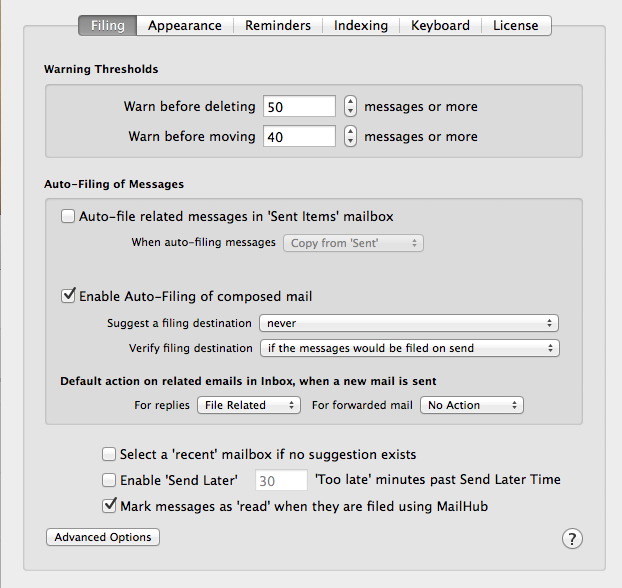
Figure 1 and 2: MailHub addition to Apple Mail preference pane (above) and its options (below)
According to the website, here is a list of what is possible to do:
- Organise your email simply and easily using MailHub’s auto-suggest intelligent technology which suggests where to file your mail based on your previous email activity
- File or delete emails individually, by thread or by sender in one simple process
- Auto-file sent email to its parent mailbox
- Create new mailboxes simply and organically when new filing categories arise
- Set reminders for email related actions at the touch of a button
- Preview changes before making them / undo changes as required
I will not go through MailHub option tabs as shown in the previous figure. Once you have MailHub install you will notice that Apple Mail now have a new toolbar. I set mine to blue (it is one of the appearance option) in the figure below so you can clearly see it. The most used button is indicated by the black circle. Clicking on it will automatically filed the current e-mail in the mailbox indicated by the black rectangle. Again that mailbox can be local or on a remote server depending on your indexing option. I set MailHub so that all mailboxes, local and server-based, are indexed.
Figure 3: New toolbar to Apple Mail.
If you do not like the filling option (mailbox choice) provided to you by MailHub (black rectangle in the above figure), you can 1) click on the pull down menu to get other choices. This is similar to DevonThink that provides you with its best guest on the top and other choices below it. 2) You can also type in a few letters of a mailbox name in the search bar that will appear at the top of the pull down menu to bring a mailbox to the top. 3) You can also create a new mailbox using the + button shown in the back rectangle region of the above figure. Notice also the arrow, it allows you to automatically jump to the selected mailbox and the home button (green circle) get you back to your Inbox.
Now you probably have picked up that the filling button, indicated by the black circle, also has a pull down menu. This is because you can file the current e-mail, file the entire e-mail thread or all e-mail sent by this specific sender. The delete button beside it (between the black and the red circles) have the same options i.e. selected, thread or sender.
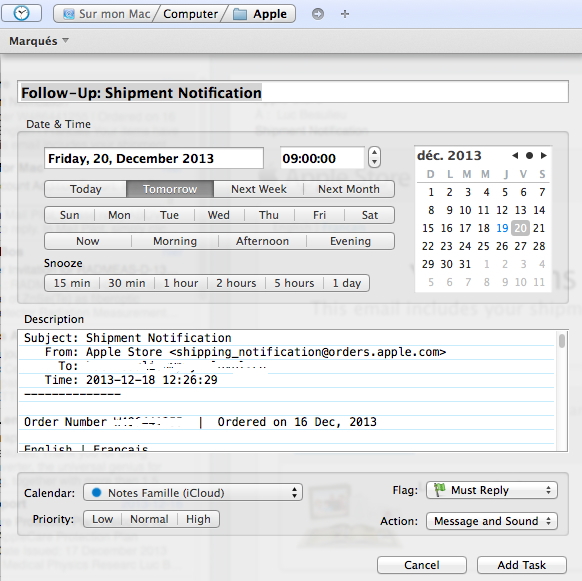
In the red circle, the little clock icon represent reminder options to be set on the selected e-mail. The available options are given in the figure below. It works with Reminder and iCal to set reminders at specific dates and times. An interesting feature is that the complete e-mail content is copied in the reminder as a note. I set it so that the reminder is capture automatically by Things. It works flawlessly. The only major shortcoming to this is that a link back to the e-mail is not provided.I hope that this option is added by Dervish Software in a future release. As such, for now I much prefer using Things keyboard shortcut to create a quick entry in Things that does contain the link back to the e-mailing question.
Figure 4: MailHub reminder options, including setting flags, action and iCal/Reminder.
You will also notice a new toolbar addition when you write a new e-mail or reply to an existing one. This time you have three “send” mail options, the regular one (original top left icon = third button from the left on the new toolbar – Figure below) and two new options: 1) send e-mail and file the sent message (you get to set which mailbox using the pull down menu (“none set” in the image below) or 2) send e-mail and deleted the sent message. I really like the “send and file” option. For many e-mail threads I like to keep copy of my sent messages. This option allow you to skip CCing myself and then file that message: saving further e-mail processing (or taking manually the sent messages and file them, which would also take extra e-mail processing time). You will also notice the clock icon for setting reminder related to the e-mail you are about to send. This gives you the exact same options as explained before.
Figure 5: New post/reply to existing post MailHub toolbar add-ons.
You can download and use MailHub free (full feature sets) for 30 days. I was sold after two days but mileage will vary. Conclusion, 19$ very well spent and, at least for me, much more efficient and cheaper that the combination MailTag and MailActOn. Getting my Inbox to zero has never been so quick and easy, especially when combined with SaneBox (that automatically sort close to 40% of my incoming e-mails out of my Inbox without any action on my part!).
Happy New Year!




 Ruminating...