
Getting your Inbox to zero quickly and easily with MailHub, an “AI” add-on to Apple Mail!

There are numerous tools and recipes to help you get your e-mail Inbox to zero. One popular choice is indev MailTag and MailActOn. The nice things about indev software is that they plugged right in Apple Mail. Mail Act On is very powerful but requires you to build and maintain all the rules or act on “actions” you create. Also like its use for files, tagging does have limits, in particular when you have a large number of them: it simply does not scale easily. Finally using the combination of MailTag and MailActOn to deal with and file e-mails is not highly efficient when compared the way I am filing my load of weekly digital documents using DevonThink built-in Artificial Intelligence (AI).

One option would be to throw all of your e-mails in DevonThink but Devon is not a Mail program. I also like having e-mails from all of my on-going projects live on the corporate (University) server: accessible everywhere and backup for me!

Here comes Dervish Software MailHub to the rescue. MailHub is a plug-in to Apple Mail that adds intelligent “DevonThink like” filing capability to all of your mailboxes. When I say all mailboxes I really means for all that you asked MailHub to index: Work computer, Exchange/IMAP mailboxes, local mailboxes (I do have over 20 years of e-mail archives of the projects I completed over the years), iCloud and GMAIL. No time spent to create rules or actions, no upkeep “cost”. To be fair it does more than that but the intelligent filing with either a single keyboard shortcut or a single click (you have the choice and the keyboard shortcut is user configurable) is what sold me.

Mailhub1

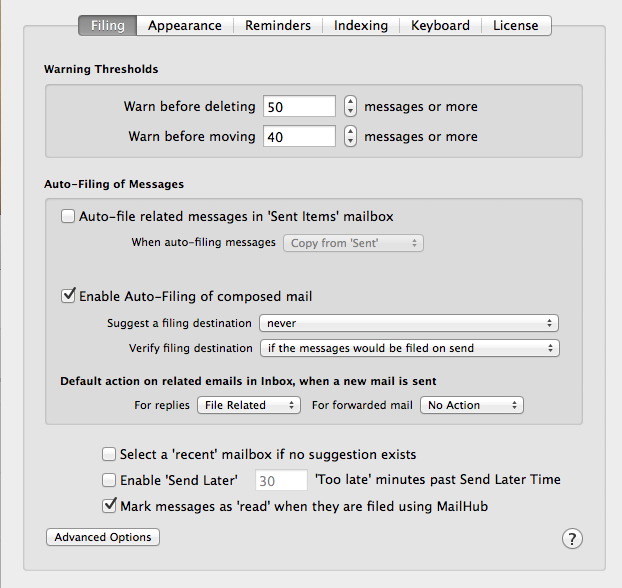
Figure 1 and 2: MailHub addition to Apple Mail preference pane (above) and its options (below)
MailHub2

According to the website, here is a list of what is possible to do:

  • Organise your email simply and easily using MailHub’s auto-suggest intelligent technology which suggests where to file your mail based on your previous email activity
  • File or delete emails individually, by thread or by sender in one simple process
  • Auto-file sent email to its parent mailbox
  • Create new mailboxes simply and organically when new filing categories arise
  • Set reminders for email related actions at the touch of a button
  • Preview changes before making them / undo changes as required

I will not go through MailHub option tabs as shown in the previous figure. Once you have MailHub install you will notice that Apple Mail now have a new toolbar. I set mine to blue (it is one of the appearance option) in the figure below so you can clearly see it. The most used button is indicated by the black circle. Clicking on it will automatically filed the current e-mail in the mailbox indicated by the black rectangle. Again that mailbox can be local or on a remote server depending on your indexing option. I set MailHub so that all mailboxes, local and server-based, are indexed.

MailHub3

Figure 3: New toolbar to Apple Mail.

If you do not like the filling option (mailbox choice) provided to you by MailHub (black rectangle in the above figure), you can 1) click on the pull down menu to get other choices. This is similar to DevonThink that provides you with its best guest on the top and other choices below it. 2) You can also type in a few letters of a mailbox name in the search bar that will appear at the top of the pull down menu to bring a mailbox to the top. 3) You can also create a new mailbox using the + button shown in the back rectangle region of the above figure. Notice also the arrow, it allows you to automatically jump to the selected mailbox and the home button (green circle) get you back to your Inbox.

Now you probably have picked up that the filling button, indicated by the black circle, also has a pull down menu. This is because you can file the current e-mail, file the entire e-mail thread or all e-mail sent by this specific sender. The delete button beside it (between the black and the red circles) have the same options i.e. selected, thread or sender.

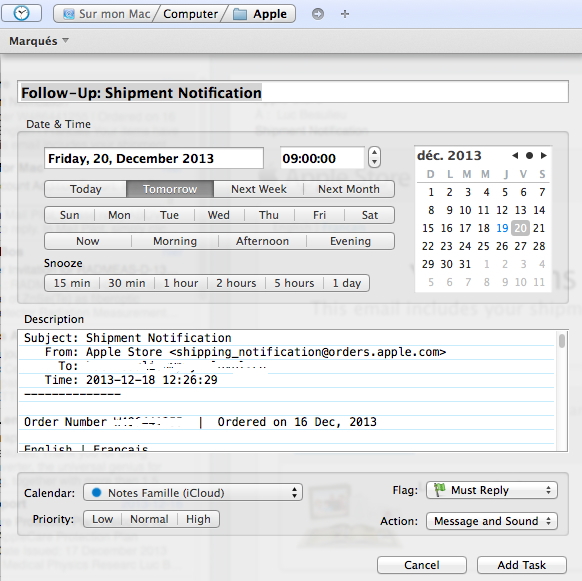
In the red circle, the little clock icon represent reminder options to be set on the selected e-mail. The available options are given in the figure below. It works with Reminder and iCal to set reminders at specific dates and times. An interesting feature is that the complete e-mail content is copied in the reminder  as a note. I set it so that the reminder is capture automatically by Things. It works flawlessly. The only major shortcoming to this is that a link back to the e-mail is not provided.I hope that this option is added by Dervish Software in a future release. As such, for now I much prefer using Things keyboard shortcut to create a quick entry in Things that does contain the link back to the e-mailing question.
MailHub4

Figure 4: MailHub reminder options, including setting flags, action and iCal/Reminder.

You will also notice a new toolbar addition when you write a new e-mail or reply to an existing one. This time you have three “send” mail options, the regular one (original top left icon = third button from the left on the new toolbar – Figure below) and two new options: 1) send e-mail and file the sent message (you get to set which mailbox using the pull down menu (“none set” in the image below) or 2) send e-mail and deleted the sent message. I really like the “send and file” option. For many e-mail threads I like to keep copy of my sent messages. This option allow you to skip CCing myself and then file that message: saving further e-mail processing (or taking manually the sent messages and file them, which would also take extra e-mail processing time). You will also notice the clock icon for setting reminder related to the e-mail you are about to send. This gives you the exact same options as explained before.

MailHub5 NewMail add on

Figure 5: New post/reply to existing post MailHub toolbar add-ons.

You can download and use MailHub free (full feature sets) for 30 days. I was sold after two days but mileage will vary. Conclusion, 19$ very well spent and, at least for me, much more efficient and cheaper that the combination MailTag and MailActOn. Getting my Inbox to zero has never been so quick and easy, especially when combined with SaneBox (that automatically sort close to 40% of my incoming e-mails out of my Inbox without any action on my part!).

Happy New Year!
OSX 10.9 (Mavericks) is available and free!

Wired is running an interesting piece about the latest operating system from Apple. In part past, Apple provided free or very low cost upgrade for its “minor” version of OSX but paying upgrade for significant new version. 10.9 is a significant upgrade but will be free: Apple Just Ended the Era of Paid Operating Systems | Wired Business | Wired.com.

In a related news, iWork (Numbers, Keynote and Page) will be free with each new Apple computing devices, Mac or iDevices! Office productivity and MS Office compatibility out of the box. That should be interesting…

Apple A7 chip and iOS 7 thorough reviews available…

For those of you following the tech world, in particular computers, the announcement of the A7 64 bits SoC probably got a WOW out of you. It did for me. To me screen size, phone shape and the same has nothing to do with innovation. The issue of 4″ vs. 4.5″ vs. 5″ screens is like preferring a 13″ vs. 15″ vs. 17″ notebook or a 50″ vs. 65″ TV set. However, screen technology providing rendering image, resolution, contrast, color delivery (gamma, …), lower power consumption and the combination of all of them and more that is innovation. The same for custom, optimized and powerful SoC chips that drive these micro-computer… errr smartphone.

Quite frankly looking back at computing since the Z80, TRS-80 and commodore when I started on my first computers, the power packed in commercially available device of such as small format as the iPhone 5S, fitting in one’s pocket and working for hours before recharge, is absolutely amazing. In addition it delivered to the general public a 64 bits platform along with the OS and numerous apps (all of Apple apps on the iPhone 5S have been recompile in 64 bits). It might not register as a big deal to most phone users but it is from a technological standpoint. Also interesting that ARM was joint venture between Apple and two other companies in part to produce power efficient chips for the Newton, such a long time ago it seems.

A very interesting review, with benchmarks, can be accessed at AnandTech. We will certainly know more when someone actually get a layout of the chip (from high-res X-ray), but still very interesting. The review also look at the integrated camera and fingerprint system. Another interesting read is Daring Fireball takes on 5S new technologies.

Today was also the public release day for iOS 7 (like it or not!). Ars Technica published an in-depth-review.

Good reading 😉

It is not ok to forget basic math…

Is it ok to forget basic math simply because we are reporting to readers some information on the web? I am asking because today Apple was announcing its quarterly numbers and the first reports from specialists were not even able to get the math right. This is rather discouraging considering that this is their full time work for most.

In nutshell:

  • 4.2 billion$/week in revenue vs 3.3 billion $/week in revenue for same quarter a year ago
  • 13.08 billion in total profit over 13 weeks versus 13.06 billion $ for the 14 week quarter a year ago.

This is where the problem start, reading the so-called “serious” news outlet. In term of revenue, the YOY increase is about 27% which is rather impressive for a mammoth-like corporation in this economic context. However how many of these analysts, those providing readers with advices with regards to what to do with their money, have written in the minutes after Apple’s announcement that the profits were flat (or even declining), thus …

I am not an economist but I would grade that statement with a failing mark would it be a math exam. I would certainly expect a high school student to get this right.

13.08 billion over 13 weeks is 1.006 billion $ / week while 13.1 billion over 14 week is 0.933 billion $ / week. This actually translates to an increase in profit of about 7.8% YOY. This is not a flat nor decreasing scenario anymore.

We can of course argue about the significance of this increase (and this is not the place to do so!) but at least we are comparing and reporting the right information. Everything else has nothing to do with hard numbers 😉

LaCie Rugged 1 Tb USB3 / Thunderbolt External Drive: the Good and the Ugly

Whatever your have gone 100% digital or for occasional use, it is good practice to keep a copy of your important files “off site” from your main backup infrastructure. Mine is a 5-drive Drobo system used by time machine at work (set with 2-drive failure protection mode). So for portable backup, I bought a few years ago a 320Gb rugged LaCie triple interface (USB2/FW400/FW800) drive. Worked very nicely but got a little small. I also knew that I would change by MacBook Pro in 2012, with the expectation that USB3 / Thunderbolt would become the norm. My 15″ MacBook Pro Retina display fits the bill.

So I recently acquire the LaCie Rugged  1 Tb USB3 / Thunderbolt drive.

I decided to submit this drive to real-world read/write tests. By real-world, it means in my case backing-up and reading back files/folders.

The tests

  • I used three folders: one 9Gb composed mainly of mp3 and mp4 files, a 17Gb folder containing 12 MPixel photographs and finally a 109.8Gb folder composed mainly of standard and high-definition movies.
  • I used the terminal cp and time commands for these tests, namely: time cp -r <source> <destination>
  • Write tests = getting files from my Retina notebook and write them to the LaCie drive
  • Read tests = reading the files from the LaCie drive and to my MacBook Pro
  • Each test has been performed three times for each folder for a given interface (USB2, FW800, …)
  • I calculated the average values from the 9 individual values in the read tests for each interface. I proceeded similarly for the write tests.

For those who wonder, the Retina is using the latest generation SSD drive, so it is not a bottleneck in these tests!

The results (the good)

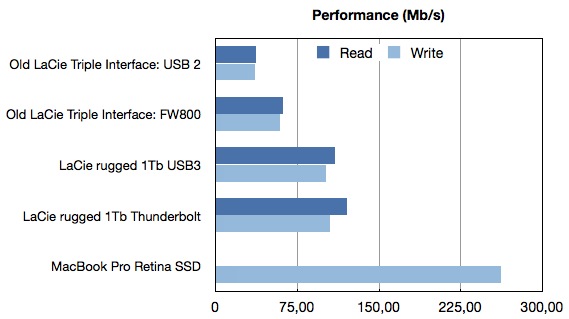
The figure below gives the write / read performance in Mb/s for my old 320 Gb triple interfaces LaCie starting at around 35 Mb/s using the USB2 interface and about 60 Mb/s with FW800. In comparison using the same terminal command as above to copy the same folders to another place on my internal SSD drive i.e. read from the SSD drive and write a new version of these folders also to the SSD drive gives over 266 Mb/s!

LaCie-Performance.001

First impression of the LaCie 1 Tb drive: it is much faster than the previous one thanks to the modern USB3 and Thunderbolt interfaces. The gain factor over the previous incarnation is between 1.7 to 3 times faster in these tests.

The surprise (the ugly)

The main surprise is the Thunderbolt interface is providing very little gain over USB3 in my real-world tests. In fact considering that the standard deviations are between 5 to 10% of the reported values shown in the figure, one can safely assumed that this drive basically offer the same level of performance for both interfaces.

In turns out that LaCie decided to use a 5400RPM drive for this model. I therefore must conclude that the hard drive rotational speed is limiting the Thunderbolt interface (maybe it even limits the USB3 interface). While marketing this drive as a Thunderbolt enable drive is a great publicity pull, the decision of using a sub-standard hard drive (in term of speed) is a very stupid one from LaCie in my opinion and deceiving for the buyer expecting to obtain significant advantage from the Thunderbolt port.

Conclusion

The new LaCie Rugged 1 Tb USB3/Thunderbolt external hard drive is a very capable, robust drive for anyone needing a drive that can travel and sustain some level of bumping. It is much faster than the previous triple interface LaCie rugged version. However even for its 220-230$ price point, do not expect the enhanced Thunderbolt speed. You will have to settle for USB3 speed.